

Table of Contents
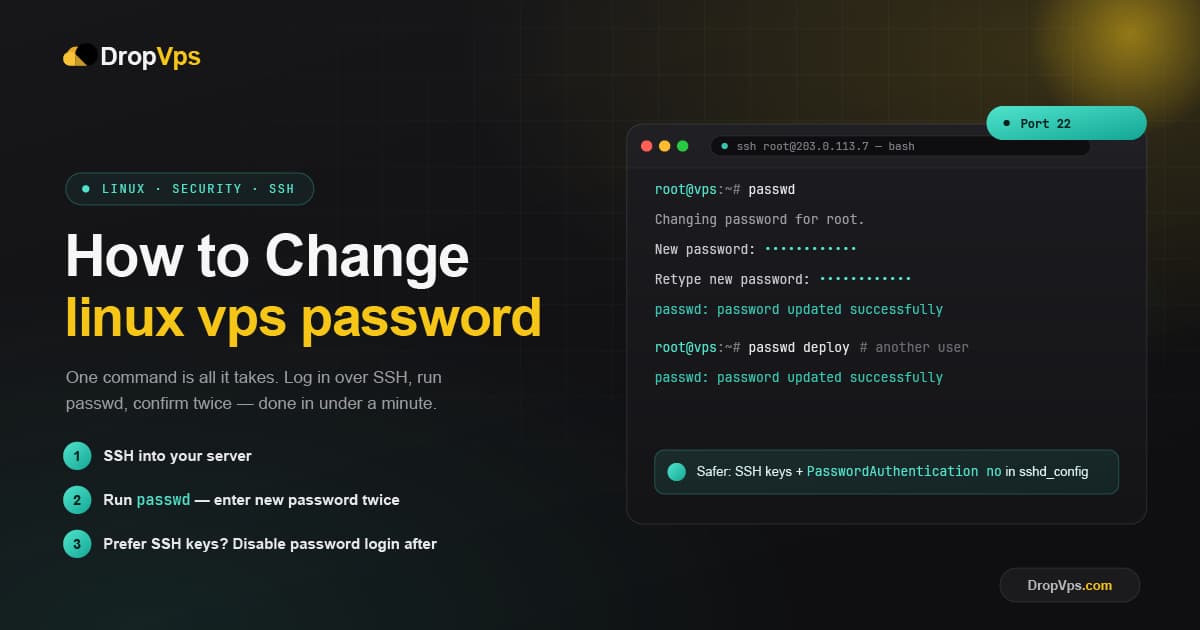
To change a Linux VPS password, connect to the server over SSH and run the passwd command. Run passwd on its own to change your own account, sudo passwd username to change another user, or sudo passwd root to change the root password. Enter and confirm the new password when prompted — the message passwd: password updated successfully confirms the change, and no reboot is required.
This guide walks through every case in order: your own password, another user's, and root. It works on any Linux distribution — Ubuntu, Debian, CentOS, AlmaLinux, and Rocky Linux all use the same command. You'll also see how to verify the change, secure the account afterwards, and fix the errors people hit most often. If you have lost the current password, skip to changing a password without knowing the current one.
What you need before you start
You need three things: the IP address of your VPS, a user account with a working login (your own user, or root), and an SSH client. On Windows that is usually PuTTY; on macOS and Linux the built-in terminal already includes the ssh command.
One safety habit before you change anything: keep your current SSH session open and, ideally, open a second session in a new window. If a password change goes wrong, the open session lets you fix it instead of locking yourself out.
Good to know: changing an account password does not disconnect your current session, and it does not affect SSH key authentication. If you log in with an SSH key, that key keeps working after the password change.
Step 1: Connect to your Linux VPS over SSH
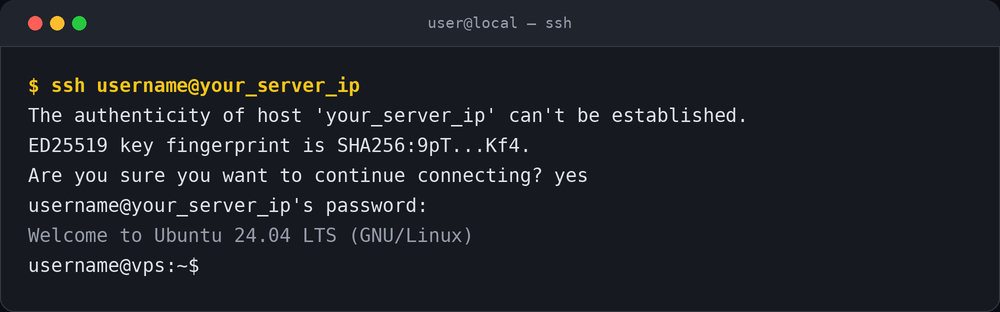
Open a terminal (macOS/Linux) or PuTTY (Windows) and connect using your username and server IP. SSH uses port 22 by default.
ssh username@your_server_ipReplace username with your Linux user (for example root or a sudo user) and your_server_ip with your VPS IP address. On the first connection you'll be asked to accept the server's host key — type yes and press Enter. Enter your password when prompted; nothing appears on screen as you type, which is normal.
Step 2: Change your own password with passwd
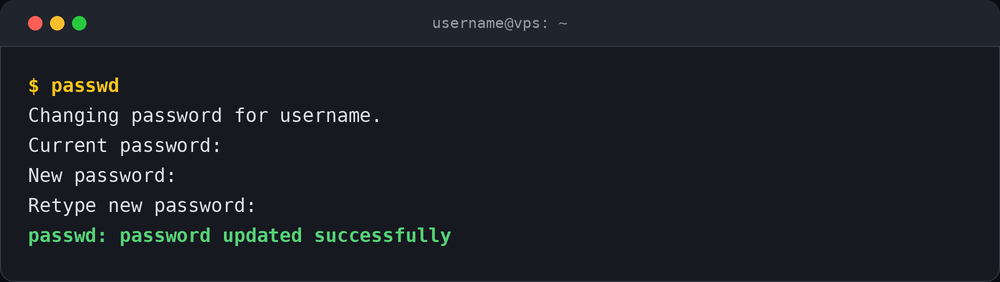 Once you're logged in, run
 passwd with no options to change the password of the account you're currently using.
passwdYou'll be asked for your current password first, then for the new password twice:
Changing password for username.
Current password:
New password:
Retype new password:
passwd: password updated successfully
The passwords are not shown as you type them. When both new entries match and meet the system's complexity rules, you'll see passwd: password updated successfully. The change is immediate — the next time you log in, use the new password.
Step 3: Change another user's password
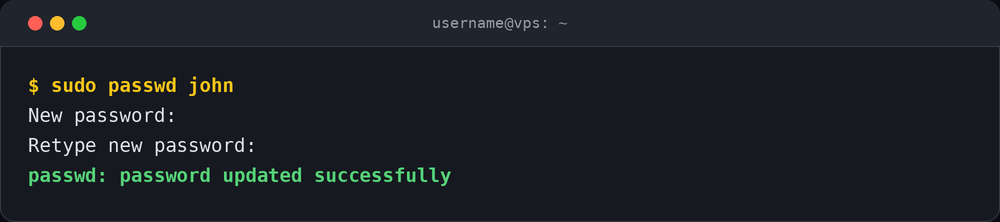 To change the password of a different account, run
 passwd with that username and administrative privileges. Add sudo if you are not logged in as root.
sudo passwd usernameReplace username with the account you want to update — for example sudo passwd john. Because you are acting as an administrator, you are not asked for that user's current password; you only enter and confirm the new one:
New password:
Retype new password:
passwd: password updated successfully
This is why an administrator can reset a password nobody remembers: the superuser is allowed to skip the current-password check that a regular user must pass.
Step 4: Change the root password
The root account is changed the same way — name root as the target. If you have sudo access, this also lets you set a root password you don't currently know.
sudo passwd rootEnter and confirm the new root password when prompted.
Note for Ubuntu and Debian users: the root account is locked by default. Setting a root password with
sudo passwd rootenables local root login, but logging in as root over SSH may still be blocked by thePermitRootLoginsetting in/etc/ssh/sshd_config. For day-to-day administration, using a normal user withsudois safer than enabling root SSH login.
Step 5: Verify the password change
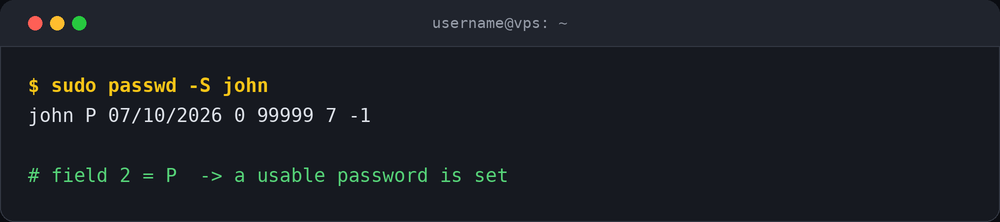 You can confirm an account's status without logging out by checking it with the
 -S (status) option.
sudo passwd -S usernameThe second field of the output tells you the account state: P means a usable password is set, L means the password is locked, and NP means no password. The third field shows the date of the last password change — it should read today's date after a successful change.
The most reliable test is simply to open a new SSH session (keep the current one open as a backup) and log in with the new password.
Change a Linux password without knowing the current one
There are two situations here, and they need different fixes.
You forgot one user's password but still have sudo or root access. Just reset it as an administrator, exactly as in Step 3:
sudo passwd usernameNo current password is needed.
You've lost the root/sudo password entirely and can't log in at all. The account password can only be reset with a lower-level method — booting into recovery or single-user mode, or using your provider's console. Because the exact steps differ by distribution, follow the guide that matches your system:
- Reset an Ubuntu password from recovery mode
- Reset a forgotten Debian password
- Reset the root password on AlmaLinux (and Rocky/RHEL)
- Reset a forgotten Linux Mint password
- Reset an Arch Linux password
On a DropVPS server you can also open the Client Dashboard to access the console, or contact support if you need a hand regaining access.
Optional: password security on a VPS
A VPS is reachable from the public internet, so it's worth doing a little more than the minimum. The commands below use the same passwd and chage tools that ship with every Linux distribution.
Force a password change at next login
If you set a temporary password for someone, you can require them to choose their own on first login by expiring the current one.
sudo passwd --expire usernameLock or unlock an account
To stop an account from logging in with a password — for example an unused default account — lock it:
sudo passwd -l usernameUnlock it again with sudo passwd -u username.
Warning: locking only disables password login. If the user has an SSH key, they can still connect. To disable the whole account, also set an expiry with
sudo usermod --expiredate 1 username. Avoidpasswd -d username, which removes the password entirely and allows passwordless login — a security risk on an internet-facing server.
Set a password expiry policy
The chage command manages password aging. For example, require a change every 90 days:
sudo chage -M 90 usernameView a user's current aging settings at any time with sudo chage -l username.
Move from passwords to SSH keys
The strongest step is to stop relying on passwords for SSH altogether and use key-based authentication instead. Keys can't be brute-forced like a password and remove the risk of weak credentials on a public server. Once keys are working, you can disable SSH password login in /etc/ssh/sshd_config. A dedicated key-setup guide is a good next read after this one.
Quick command reference
| Task | Command |
|---|---|
| Change your own password | passwd |
| Change another user's password | sudo passwd username |
| Change the root password | sudo passwd root |
| Check an account's password status | sudo passwd -S username |
| Force a change at next login | sudo passwd --expire username |
| Lock an account | sudo passwd -l username |
| Unlock an account | sudo passwd -u username |
| Set maximum password age (90 days) | sudo chage -M 90 username |
| View password aging info | sudo chage -l username |
passwd and chage commands for managing Linux VPS passwords.Common errors and how to fix them
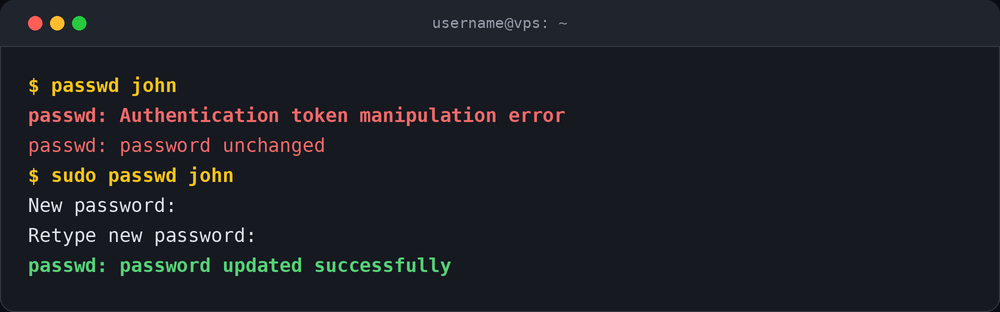
"passwd: Authentication token manipulation error" — this almost always means you don't have permission to change that password. You're likely trying to change another user's or root's password without sudo or root access. Add sudo in front of the command. In rare cases it points to a read-only filesystem, which needs to be remounted read-write first.
"BAD PASSWORD: ..." — the new password failed the system's quality rules (length, or too simple/based on a dictionary word). As a regular user the password is rejected and you must choose a stronger one. As root you may see this as a warning and can still proceed, but choosing a stronger password is the right move on a public VPS.
"passwd: password unchanged" — you cancelled the prompt (for example with Ctrl+C) or the two new-password entries didn't match. Run passwd again and enter the same new password both times.
"Sorry, passwords do not match" — the confirmation didn't match the first entry. Re-run the command and type carefully, remembering that nothing is echoed to the screen.

Follow DropVPS on Google
Add DropVPS as a preferred source to see our latest VPS guides and tutorials surfaced first in Google Search and AI Overviews.
Need a Windows Server?
DropVPS Windows VPS gives you full Admin RDP access, instant setup, and dedicated resources — run any Windows workload without limits.
- Full Admin Access
- RDP Ready Instantly
- Dedicated Resources
- 24/7 Support
No commitment · Cancel anytime