

Table of Contents
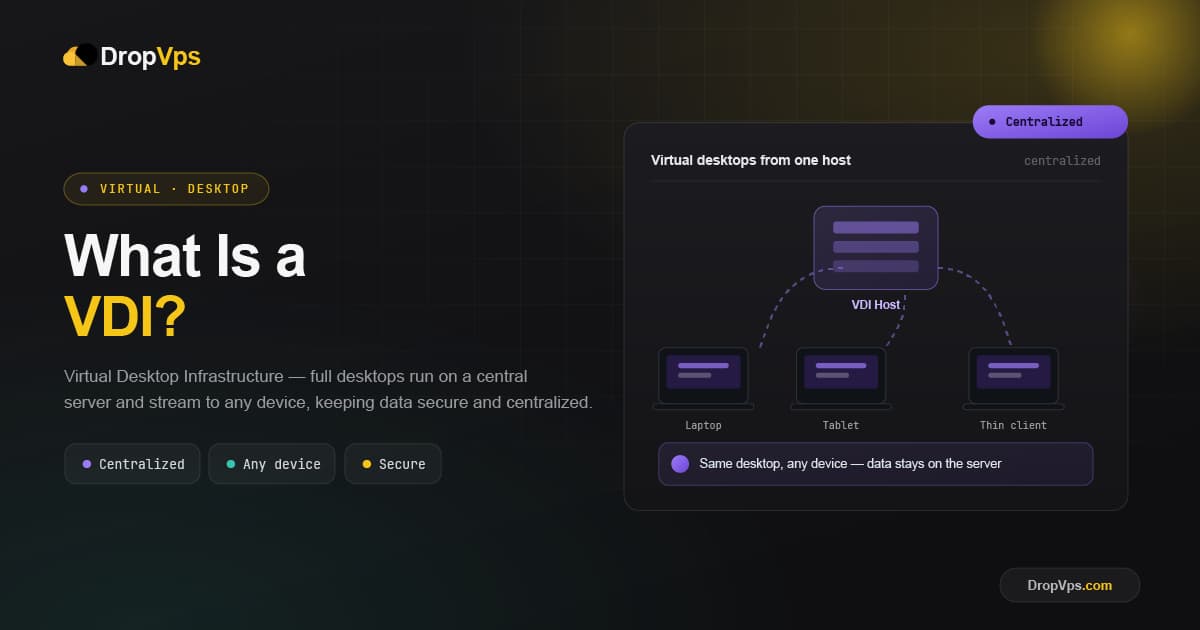
VDI stands for Virtual Desktop Infrastructure. It is a technology that hosts full desktop environments on centralized servers, so users can access their desktop, applications, and files remotely from almost any device.
Instead of running an operating system on local hardware, VDI separates the desktop from the physical device. The desktop runs as a virtual machine in a data center, and the user's screen, keyboard, and mouse input are streamed back and forth over the network.
How VDI Works
A hypervisor runs on a physical server to create and manage virtual machines that each host an individual desktop operating system. Every user is connected to their own VM through a connection broker, which authenticates the user and routes them to the correct virtual desktop.
A typical VDI setup is built from a few core components:
Hypervisor        - creates and runs virtual desktop machines on the host server
Connection Broker - authenticates users and assigns them to their desktop
Desktop Image     - the OS, apps, and settings template used to build each desktop
Display Protocol  - streams the desktop screen and handles keyboard/mouse input
Because the operating system, applications, and data live on the server rather than the local device, the endpoint becomes more of an access point than the actual workstation. This means even an old PC, a tablet, or a thin client terminal can run a full, powerful desktop session.
Persistent vs Non-Persistent VDI
VDI deployments fall into two categories, depending on whether a user's desktop changes are saved between sessions.
| Type | How it works | Best for |
|---|---|---|
| Persistent VDI | Each user gets a dedicated desktop that stays the same between sessions | Users who need a personalized, consistent environment |
| Non-Persistent VDI | Users get a fresh, identical desktop each session, with no saved state | Task workers, call centers, training labs |
VDI vs RDS vs VPS
VDI is often confused with Remote Desktop Services (RDS) and a regular VPS, since all three involve accessing a remote environment. The difference lies in how resources are allocated.
| Technology | Resource model | Typical use case |
|---|---|---|
| VDI | Each user gets their own dedicated virtual machine and OS | Enterprises needing isolated, customizable desktops |
| RDS | Multiple users share one Windows Server session | Cost-effective shared access for similar workloads |
| VPS | A single dedicated virtual server with root/admin access | Hosting websites, apps, or always-on background tasks |
VDI gives each user their own dedicated virtual machine, while RDS puts multiple users on one shared server. A VPS is a different category altogether. It's a single virtual server meant for hosting workloads such as websites, applications, or trading bots, rather than delivering desktop sessions to multiple end users.
If you specifically need a remote, always-on Windows or Linux environment to run software rather than a multi-user desktop platform, a Windows VPS or Linux VPS is typically the simpler and more cost-effective option.
What VDI Is Used For
VDI is mainly adopted by organizations that need centralized control over desktop environments at scale:
Remote and hybrid workforce access
Bring Your Own Device (BYOD) programs
Secure third-party or contractor access
Regulated industries (healthcare, finance, legal)
Call centers and task-based work
Training labs and educational environments
Related Guide
Windows VPS Hosting PlansIf you need a dedicated remote Windows environment rather than a multi-user VDI platform, a Windows VPS is the simpler choice.
VDI remains the standard choice for organizations that need centralized, secure, and customizable desktop access at scale, while simpler remote needs are often better served by RDS or a dedicated VPS.
Follow DropVPS on Google
Add DropVPS as a preferred source to see our latest VPS guides and tutorials surfaced first in Google Search and AI Overviews.
Need Remote Desktop Access?
DropVPS Admin RDP lets you access a full Windows desktop from anywhere — high-speed connection, dedicated IP, and instant deployment.
- Windows Desktop
- Dedicated IP
- High-Speed RDP
- Instant Setup
No commitment · Cancel anytime