

Table of Contents
PuTTY is a free SSH client for Windows that lets you connect to and manage a Linux VPS remotely through a command-line terminal. This guide walks through downloading PuTTY, connecting to your server, and logging in for the first time.
Step 1: Download and Install PuTTY
Download PuTTY from its official website:
PuTTY for Windows
Download the official installer before installing it on your VPS.
Download from Official Website →Run the downloaded installer and complete the setup using the default options. Once installed, launch PuTTY from the Start menu or desktop shortcut.
Step 2: Enter Your VPS Connection Details
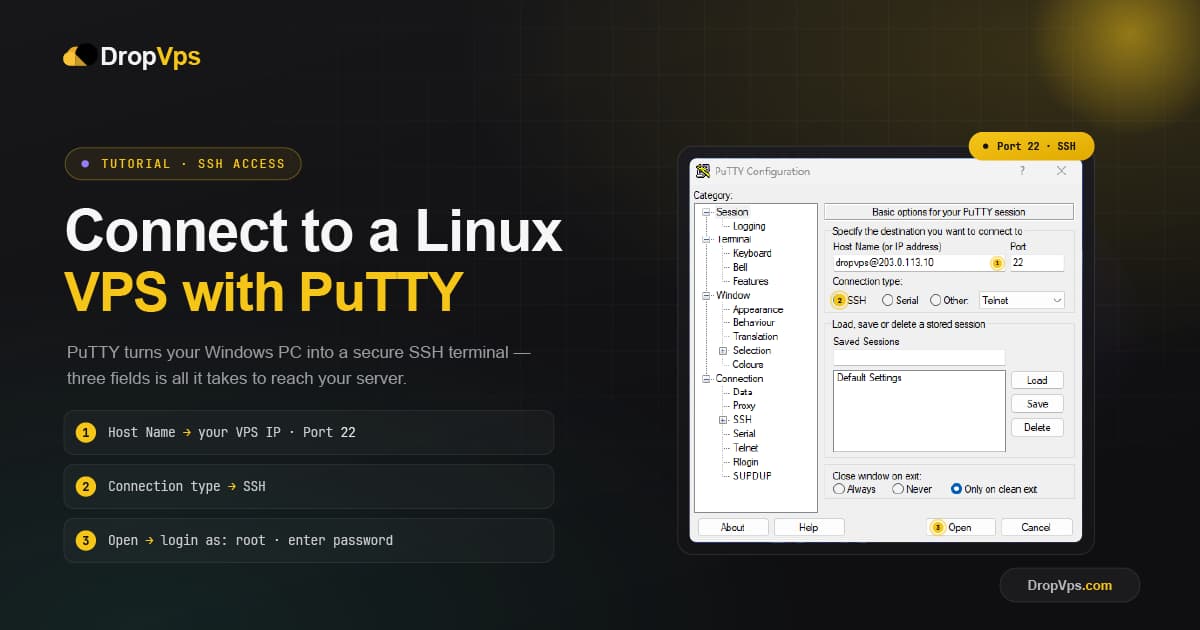
In the PuTTY Configuration window, enter your server's IP address in the Host Name field, set the port and connection type, then open the session:
Host Name (or IP address): your.vps.ip.address
Port: 22
Connection type: SSH
Click:
OpenStep 3: Accept the Security Alert
On your first connection to a new server, PuTTY will show a security alert asking you to confirm the server's host key. This is expected and simply lets PuTTY remember your server for future connections.
Click:
YesStep 4: Log In to Your VPS
A black terminal window will open and prompt you for a username. For most VPS servers, this is:
login as: rootType your username and press Enter, then enter your password when prompted:
root@your-server-ip's password: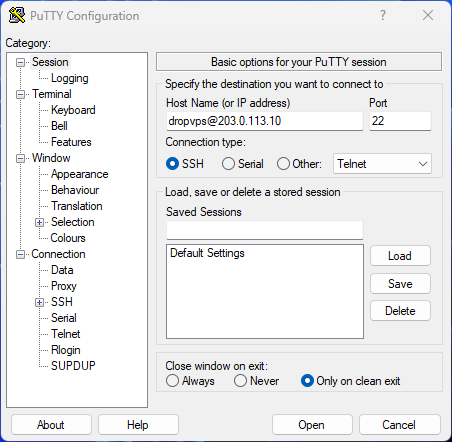
Your password will not be visible as you type, and no characters or cursor movement will appear on screen. This is normal PuTTY behavior for password entry. Press Enter once you've typed it.
Step 5: Confirm You're Connected
Once authenticated, the terminal will display your server's command prompt, confirming you're logged in:
root@your-server:~#You now have full command-line access to your Linux VPS and can begin running commands, installing software, or managing your server. To end the session at any time, type:
exitRelated Guide
Linux VPS Hosting PlansGet a Linux VPS with instant SSH access ready to connect to right after setup.
With PuTTY connected, you have direct terminal access to manage your VPS just as if you were sitting in front of it.
Follow DropVPS on Google
Add DropVPS as a preferred source to see our latest VPS guides and tutorials surfaced first in Google Search and AI Overviews.
Need a Windows Server?
DropVPS Windows VPS gives you full Admin RDP access, instant setup, and dedicated resources — run any Windows workload without limits.
- Full Admin Access
- RDP Ready Instantly
- Dedicated Resources
- 24/7 Support
No commitment · Cancel anytime