

Table of Contents
Remote Desktop Connection (RDC) is a built-in Windows application that lets you connect to and control a Windows VPS remotely, using the Remote Desktop Protocol (RDP). No extra software is required, since RDC comes pre-installed on every Windows computer.
Step 1: Open Remote Desktop Connection
On your Windows computer, open the Start menu, search for the app, and open it:
Remote Desktop ConnectionAlternatively, you can open the Run dialog and type:
mstsc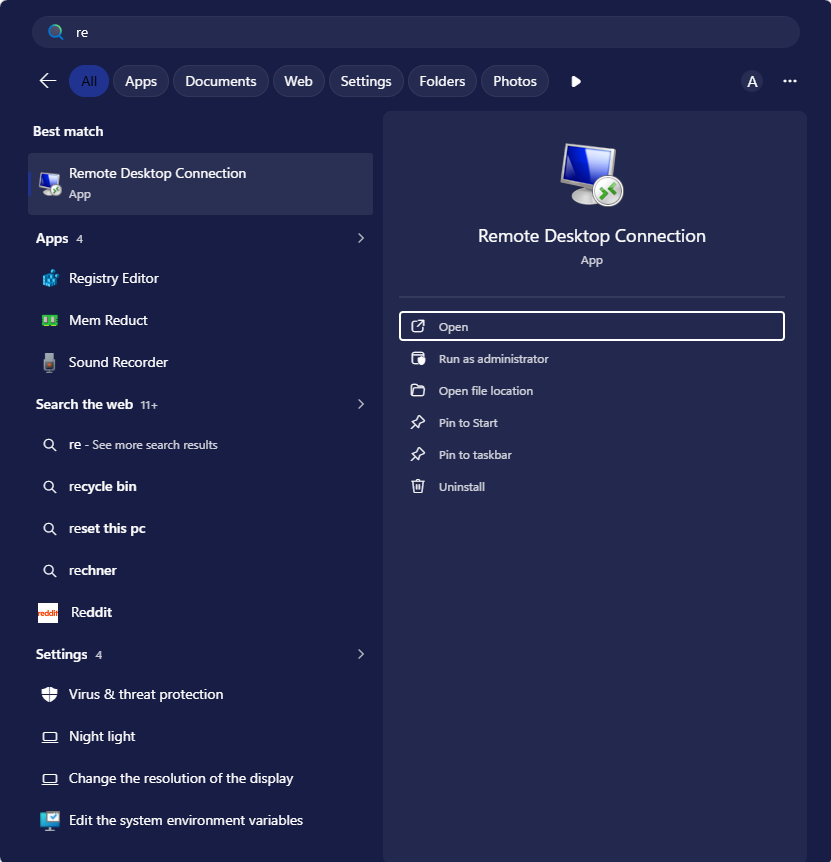
Step 2: Enter Your VPS IP Address
In the Computer field, enter your VPS IP address. If your provider assigned a custom RDP port, add it after the IP address separated by a colon:
Computer: your.vps.ip.address
Computer: your.vps.ip.address:port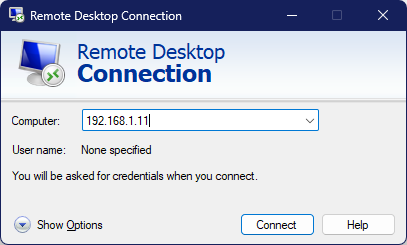
Click:
ConnectStep 3: Enter Your Username and Password
A Windows Security window will appear asking for your login credentials. Enter your username and password exactly as provided by your hosting provider:
Username: Administrator
Password: your VPS password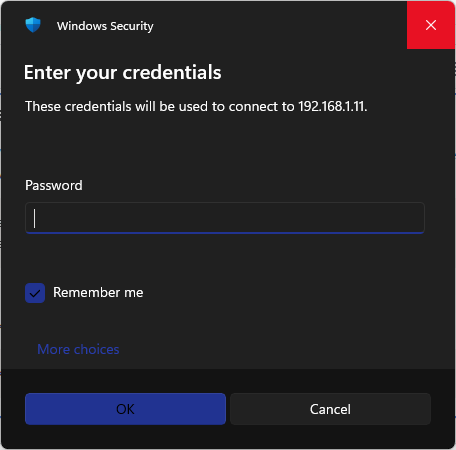
Click:
OKStep 4: Confirm the Security Warning
On your first connection, you may see a certificate warning stating that the identity of the remote computer cannot be verified. This happens because the VPS uses a self-signed certificate and is expected behavior.
Click:
YesYou can also check the box for:
Don't ask me again for connections to this computerThis skips the warning on future connections to the same server.
Step 5: Confirm You're Connected
Once authenticated, the Windows desktop of your Windows VPS will load in the Remote Desktop Connection window, giving you full graphical control over the server, just as if you were sitting in front of it.
To disconnect, click the X in the top connection bar, or open the Start menu on the remote desktop and select Disconnect.
Related Guide
Windows VPS Hosting PlansGet a Windows VPS with RDP access ready to connect to right after setup.
With Remote Desktop Connection set up, you can access and manage your Windows VPS from anywhere, using the same familiar Windows interface as a local machine.

Follow DropVPS on Google
Add DropVPS as a preferred source to see our latest VPS guides and tutorials surfaced first in Google Search and AI Overviews.
Need Remote Desktop Access?
DropVPS Admin RDP lets you access a full Windows desktop from anywhere — high-speed connection, dedicated IP, and instant deployment.
- Windows Desktop
- Dedicated IP
- High-Speed RDP
- Instant Setup
No commitment · Cancel anytime