


Table of Contents
SoftEther is a free, open-source multi-protocol VPN server, and installing it on Windows Server takes about five minutes. Here is exactly how to do it.
SoftEther VPN Server for Windows
Download the official installer before installing it on your VPS.
Download from Official Website →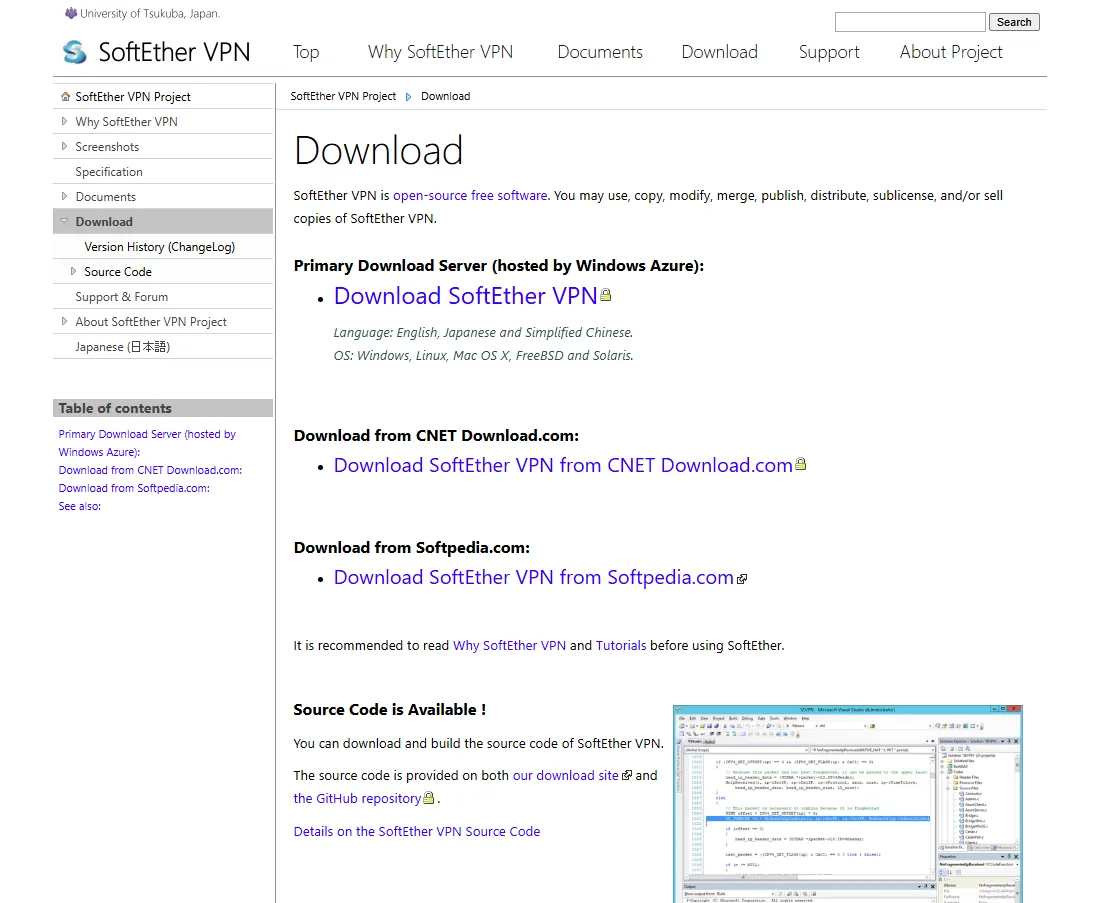
Step 1: Download the Installer
Connect to your server over RDP and open the official download page.
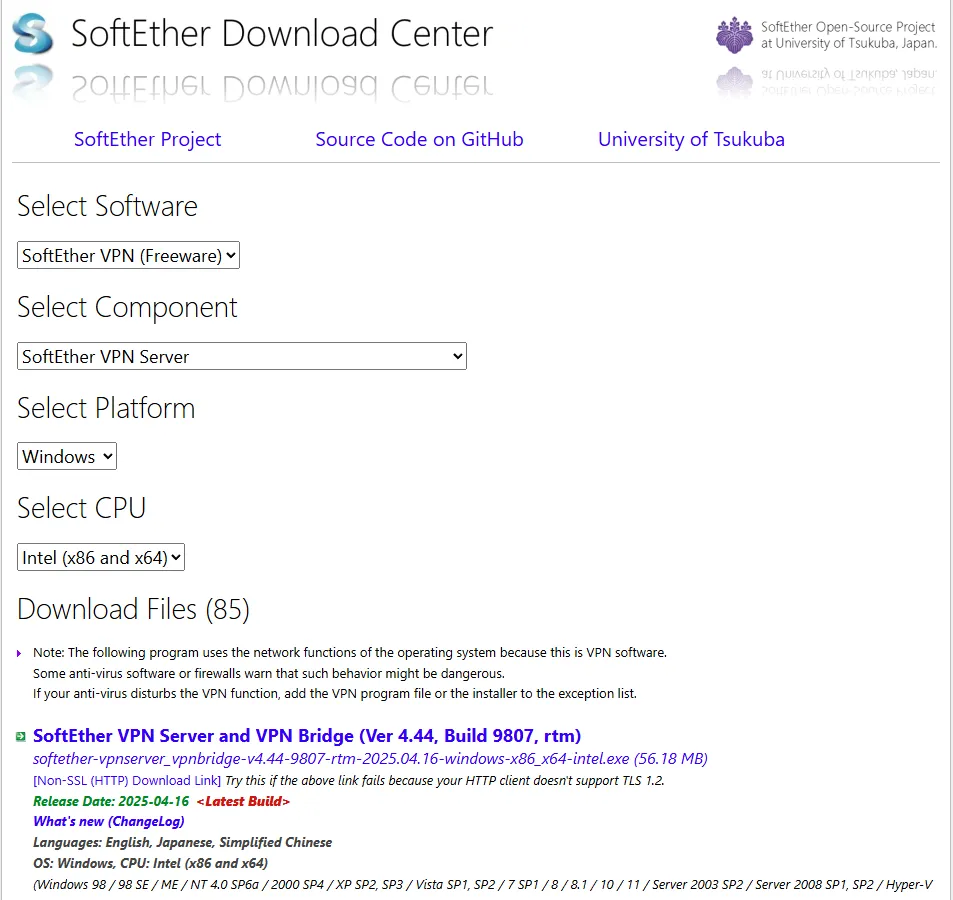
Set the four dropdowns to:
Select Software: SoftEther VPN (Freeware)
Select Component: SoftEther VPN Server
Select Platform: Windows
Select CPU: Intel (x86 and x64)
Download the newest file in the list. It is named like this:
softether-vpnserver-vX.XX-XXXX-rtm-windows-x86_x64-intel.exeStep 2: Run the Installer as Administrator
Right-click the downloaded file and choose:
Run as administrator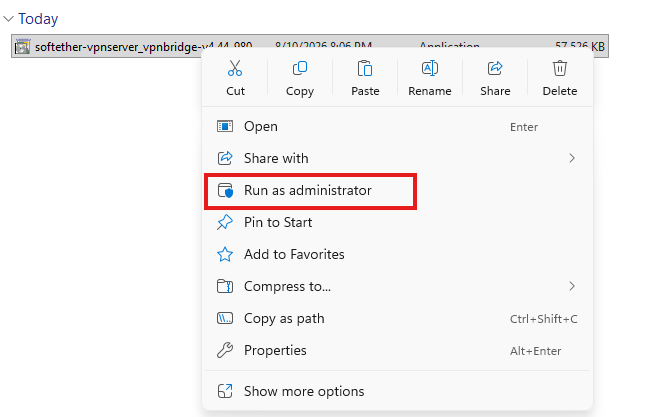
The SoftEther VPN Server Setup Wizard opens.
Step 3: Select the SoftEther VPN Server Component
The same installer can install three different products. Pick the first one:
SoftEther VPN Server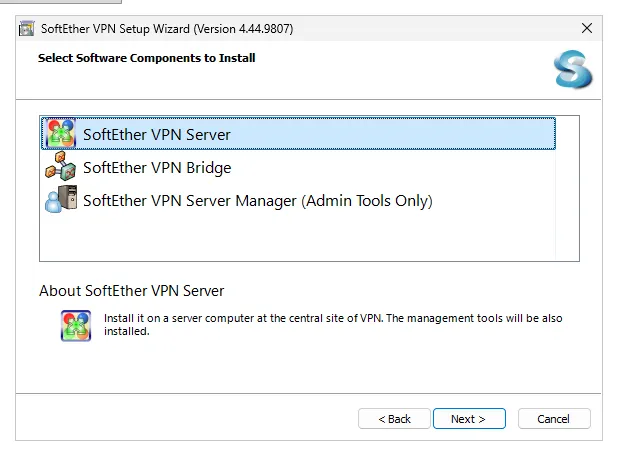
Do not pick VPN Bridge or VPN Client. Bridge joins an existing VPN, and Client only connects to one.
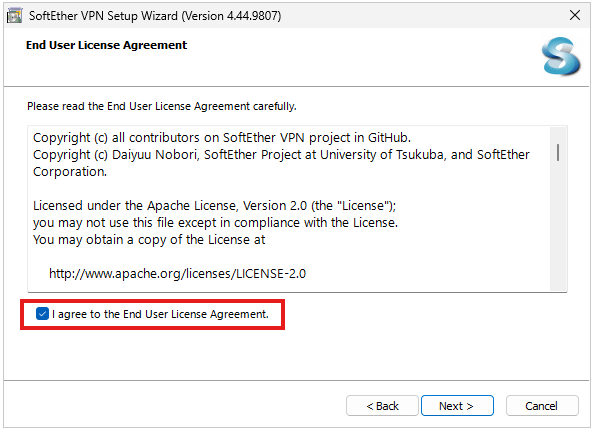
Click Next, accept the End User License Agreement, then confirm the Important Notices screen.
Step 4: Finish the Installation
Leave the installation folder at the default:
C:\Program Files\SoftEther VPN ServerClick Next, then Finish. The installer registers a Windows service that starts automatically, so the VPN server survives a reboot.
Step 5: Verify the Installation
Open PowerShell and check that the service is running:
Get-Service -DisplayName "SoftEther VPN Server"The status should read Running.
SoftEther VPN Server Manager also launches after setup. Select the local server, click Connect, and set an administrator password when prompted.
SoftEther VPN Server is now installed and running on your Windows Server. One thing to check before you configure it: SoftEther listens on TCP 443, so it will conflict with IIS if a website is already using that port on the same VPS.

Follow DropVPS on Google
Add DropVPS as a preferred source to see our latest VPS guides and tutorials surfaced first in Google Search and AI Overviews.
Need Remote Desktop Access?
DropVPS Admin RDP lets you access a full Windows desktop from anywhere — high-speed connection, dedicated IP, and instant deployment.
- Windows Desktop
- Dedicated IP
- High-Speed RDP
- Instant Setup
No commitment · Cancel anytime